Remote Jenkins builds using Github auth

Having the ability to call Jenkins jobs remotely is pretty slick and adds some extra flexibility and allows for some interesting applications.  For example, you could use remote builds to call a script from a chat app or from some other web application.  I have chosen to write a quick bash script as a proof of concept, but this could easily be extended or written in a different language via one of its language specific libraries.

The instructions for the method I am using assume that you are using the Jenkins freestyle build as I haven’t experimented much yet with pipelines for remote builds yet.

The first step is to enable remote builds for the Jenkins job that will be triggered.  There is an option in the job for “Trigger builds remotely” which allows the job to be called from a script.

trigger remote builds

The authentication token can be any arbitrary string you choose.  Also note the URL below, you will need that later as part of the script to call this job.

With the authentication token configured and the Jenkins URL recorded, you can begin writing the script.  The first step is to populate some variables for kicking off the job.  Below is an example of how you might do this.

jenkins_url="https://jenkins.example.com"
job_name="my-jenkins-job"
job_token="xxxxx"
auth="username:token"
my_repo="some_git_repo"
git_tag="abcd123"

Be sure to fill in these variables with the correctly corresponding values.  job_token should correspond to the string you entered above in the Jenkins job, auth should correspond to your github username/token combination.  If you are not familiar with Github tokens you can find more information about setting them up here.

As part of the script, you will want to create a Jenkins “crumb” using your Github credentials that will be used to prevent cross-site scripting attacks.  Here’s what the creation of the crumb looks like (borrowed from this Stackoverflow post).

crumb=$(curl -s 'https://'auth'@jenkins.example.com/crumbIssuer/api/xml?xpath=concat(//crumbRequestField,":",//crumb)')

Once you have your variables configured and your crumb all set up, you can test out the Jenkins job.

curl -X POST -H "$crumb" $jenkins_url/job/$job_name/build?token=$job_token \
  --user $auth \
  --data-urlencode json='
  {"parameter":
    [
      {"name":"parameter1", "value":"test1"},
      {"name":"parameter2", "value":"test2"},
      {"name":"git_repo", "value":"'$my_repo'"},
      {"name":"git_tag", "value":"'$git_tag'"}
    ]
  }'

In the example job above, I am using several Jenkins parameters as part of the build.  The json name values correspond to the parameters.  Notice that I am using variables for a few of the values above, make sure those variables are wrapped in singe quotes to correctly escape the json.  The syntax for variables is slightly different but allows for some additional flexibility in the job configuration and also allows the script to be called with dynamic values.

If you call this script now, it should kick off a Jenkins job for you with all of the values you have provided.
Read More

Copy text to clipboard using Powershell

In day-to-day life as an administrator, it is very common to copy and paste text between files, editors, etc.  There are a few features built into Windows and Powershell that can help make the copy pasta process easier.

The “clip” utility is a tool that has been built into Windows for a while now (I think since Windows 7), which allows you to redirect command output to the Windows system clipboard.  Pairing the clip tool with the capabilities of Powershell piping and you have a very nice way of getting text out of the shell and into a text editor, or wherever else you may want.

The following commands are simple and quick examples of how to pipe output text of a Powershell command to the clipboard.  You can use this method to output text from a file or from another Powershell command.

cat <file> | clip
Get-NetAdapater | clip

Then just hit CTRL+V in notepad (or your favorite text tool) and you will have the output of the previously clipped command.  In the above example, cat is just an alias for Get-Content in Powershell, carried over from the Linux and Unix shells.  Use the Get-Alias command to find at all of the various shortcuts for Powershell commands.

I tend to grab text out of files quite often, so writing out text to the clipboard and pasting elsewhere has saved me countless hours over the years of clicking around in GUI’s with a few keystrokes.  Shortcuts like this are often missed or over looked by admins that are used to point and clicking, so make sure you try it out if you haven’t discovered this trick.

Read More

Monitoring email flow with MFM

This is a sponsored post by the folks over at EveryCloud.  They have recently developed and released a new tool to help manage and troubleshoot email issues, which is starting to get some traction, especially among Exchange environments.  As a mail admin in a previous life, I can sympathize with desire for better monitor tools.  Here’s their post.


Managing mail flow is a challenge for every systems administrator, and the price of a mistake is very high. Any interruption in mail flow can spell disaster for a company, disrupting daily operations and leaving the management team, the IT team and the systems administrator scrambling for solutions.

While there are a number of mail flow solutions on the market, they tend to be quite pricey, making it difficult for systems administrators, especially those who work for small businesses and start-ups, to justify the cost.

For those who do not already know, the makers behind the EveryCloud mail flow monitor have recently launched a free service – Mail Flow Monitor (MFM). EveryCloud MFM tool is the only free round-trip mail flow monitor on the market, giving systems administrators the ability to observe their organizations’ email systems 24 hours a day, 7 days a week and 365 days a year, all without spending a penny.

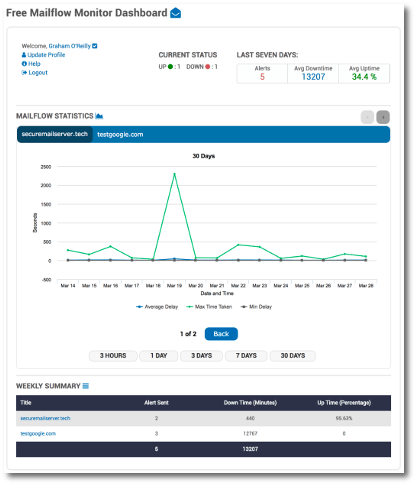
mfm dashboard

Some of the features of Mail Flow Monitor include:

  • A full-featured round trip monitor, with start-to-finish email tracking and monitoring
  • Systems administrators can receive real-time text and email alerts whenever a delay or rejection occurs – to your cell phone as well an email or to your alternative email address.
  • Timely monitoring means issues can be addressed quickly, before they spiral out of control
  • The system sends a test email every few minutes to a monitoring mailbox on your server. You set up a forward to send the emails back and the Everycloud team does the rest.
  • MFM is cloud based, which means there is nothing to update or manage.
  • MSP’s and IT Resellers can create an account and manage as many customers as they wish via the EveryCloud Partner Area, all completely free!

When you consider that competing mail filtering solutions generally cost about $30 a month, it is easy to see the saving potential. That $360 annual cost savings may not seem like much, but since it is assessed on a domain level, the charges can add up quickly. In addition, the per-domain charges can make managing a complex IT operation difficult, an extra level of hard work that systems administrators do not need.

From the smallest startups to the largest multinational corporations, modern businesses live and die on their email. An unexpected email breakdown, significant bottleneck or major failure could make the firm’s email inaccessible and unreliable for hours or even days, and every minute of downtime is costing the company money.

Read More