Running containers on Windows

There has been a lot of work lately that has gone into bringing Docker containers to the Windows platform.  Docker has been working closely with Microsoft to bring containers to Windows and just announced the availability of Docker on Windows at the latest ignite conference.   So, in this post we will go from 0 to your first Windows container.

This post covers some details about how to get up and running via the Docker app and also manually with some basic Powershell commands.  If you just want things to work as quickly as possible I would suggest the Docker app method, otherwise if you are interested in learning what is happening behind the scenes, you should try the Powershell method.

The prerequisites are basically Windows 10 Anniversary and its required components; which consist of the Docker app if you want to configure it through its GUI or the Windows container feature, and Hyper-V if you want to configure your environment manually.

Configure via Docker app

This is by far the easier of the two methods.  This recent blog post has very good instructions and installation steps which I will step through in this post, adding a few pieces of info that helped me out when going through the installation and configuration process.

After you install the Win 10 Anniversary update, go grab the latest beta version of the Docker Engine, via the Docker for Windows project.  NOTE: THIS METHOD WILL NOT WORK IF YOU DON’T USE BETA 26 OR LATER.  To check, open your Docker app version by clicking on the tray icon and clicking “About Docker” and make sure it says -beta26 or higher.
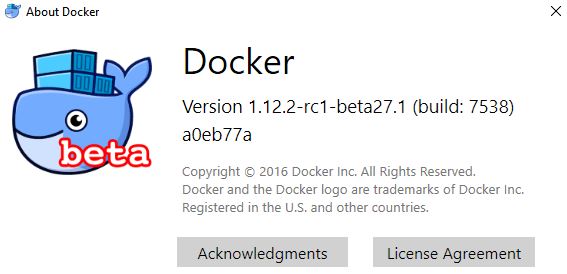
about docker

After you go through the installation process, you should be able to run Docker containers.  You should also now have access to other Docker tools, including docker-comopse and docker-machine.  To test that things are working run the following command.

docker run hello-world

If the run command worked you are most of the way there.  By default, the Docker engine will be configured to use the Linux based VM to drive its containers.  If you run “docker version” you can see that your Docker server (daemon) is using Linux.

docker version

In order to get things working via Windows, select the option “Switch to Windows containers” in the Docker tray icon.

switch to windows containers

Now run “docker version” again and check what Server architecture is being used.

docker version

As you can see, your system should now be configured to use Windows containers.  Now you can try pulling a Windows based container.

docker pull microsoft/nanoserver

If the pull worked, you are are all set.  There’s a lot going on behind the scenes that the Docker app abstracts but if you want to try enabling Windows support yourself manually, see the instructions below.

Configure with Powershell

If you want to try out Windows native containers without the latest Docker beta check out this guide.  The basic steps are to:

  • Enable the Windows container feature
  • Enable the Hyper-V feature
  • Install Docker client and server

To enable the Windows container feature from the CLI, run the following command from and elevated (admin) Powershell prompt.

Enable-WindowsOptionalFeature -Online -FeatureName containers -All

To enable the Hyper-V feature from the CLI, run the following command from the same elevated prompt.

Enable-WindowsOptionalFeature -Online -FeatureName Microsoft-Hyper-V -All

After you enable Hyper-V you will need to reboot your machine. From the command line the command is “Restart-Computer -Force”.

After the reboot, you will need to either install the Docker engine manually, or just use the Docker app.  Since I have already demonstrated the Docker app method above, here we will just install the Docker engine.  It’s also worth mentioning that if you are using the Docker app method or have used it previously, these commands have been run already so the features should be turned on already, simplifying the process.

The following will download the engine.

Invoke-WebRequest "https://master.dockerproject.org/windows/amd64/docker-1.13.0-dev.zip" -OutFile "$env:TEMP\docker-1.13.0-dev.zip" -UseBasicParsing

Expand the zip into the Program Files path.

Expand-Archive -Path "$env:TEMP\docker-1.13.0-dev.zip" -DestinationPath $env:ProgramFiles

Add the Docker engine to the path.

[Environment]::SetEnvironmentVariable("Path", $env:Path + ";C:\Program Files\Docker", [EnvironmentVariableTarget]::Machine)

Set up Docker to be run as a service.

dockerd --register-service

Finally, start the service.

Start-Service Docker

Then you can try pulling your docker image, as above.

docker pull microsoft/nanoserver

There are some drawback to this method, especially in a dev based environment.

The Powershell method involves a lot of manual effort, especially on a local machine where you just want to test things out quickly.  Obviously the install/config process could be scripted out but that solution isn’t idea for most users.  Another drawback is that you have to manually manage which version of Docker is installed, this method does not update the version automatically.  Using a managed app also installs and manages versions of the other Docker productivity tools, like compose and machine, that make interacting with and managing containers a lot easier.

I can see the Powershell installation method being leveraged in a configuration management scenario or where a specific version of Docker should be deployed on a server.  Servers typically don’t need the other tools and should be pinned at specific version numbers to avoid instability issues and to make sure there aren’t other programs that could potentially cause issues.

While the Docker app is still in beta and the Windows container management component of it is still new, I would still definitely recommend it as a solution.  The app is still in beta but I haven’t had any issues with it yet, outside of a few edge cases and it just makes the Docker experience so much smoother, especially for devs and other folks that are new to Docker who don’t want to muck around the system.

Check out the Docker for Windows forums if you run into any issues.

Read More

Explore Jackpot Village: Your Ultimate Destination for Casino Thrills

Welcome to Jackpot Village, the online casino that redefines excitement and entertainment. Whether you’re a seasoned gambler or a curious newcomer, Jackpot Village Casino offers an unparalleled experience with a wide variety of games, top-tier bonuses, and a user-friendly platform.

Jackpot Village Casino

Why Choose Jackpot Village Online Casino?

At Jackpot Village, every day feels like a celebration. The casino’s diverse range of games ensures that players of all preferences find something that suits their taste. From classic slots to contemporary table games, there’s something for everyone. A significant highlight is the Jackpot Village free spins feature, which extends your playtime and increases your chances of winning big!

Exclusive Bonuses and Promotions

Jackpot Village Casino is renowned for its generous bonuses. New players are welcomed with irresistible offers, including the much-coveted Jackpot Village bonus that amplifies your initial deposits. Regular promotions ensure that even seasoned players have something to look forward to, keeping the thrill alive.

Access Anytime, Anywhere

The convenience of the Jackpot Village app cannot be overstated. Available across devices, it allows you to dive into the action no matter where you are. Easy navigation and a seamless interface provide the ultimate gaming experience on the go. Jackpot Village login is secure and swift, safeguarding your information while letting you focus on the fun.

Here’s a visual glimpse of what awaits you:

Join the Jackpot Village Community

Becoming a part of the Jackpot Village community opens the door to a myriad of gaming adventures and exclusive benefits. Whether playing for leisure or aiming for the big wins, Jackpot Village stands out as a premier destination for both fun and fortune.

Get ready to embark on an unforgettable journey with Jackpot Village Casino today!

Read More

Oplev Mr Green Casino: Log ind, Gratis Spins og Fantastiske Bonusser

Velkommen til en verden fyldt med spænding og underholdning på Mr Green Casino. Denne artikel vil dykke ned i de vidunderlige funktioner og tilbud, som Mr Green Login giver sine brugere. Mr Green er ikke blot et almindeligt online casino; det er en portal til en verden af muligheder, hvor du kan nyde gratis spins, store bonusser og en innovativ bettingoplevelse, alt fra din computer eller gennem deres praktiske app.

Indledning til Mr Green Online

Mr Green har hurtigt etableret sig som en af de mest populære online casinoer i Danmark. Gennem deres brugervenlige platform tilbyder de et bredt udvalg af spil, bonusser og andre gaming-muligheder. For nye spillere er der en generøs velkomstbonus og for loyale kunder, er der jævnligt opdaterede tilbud. Med Mr Green betting kan spillerne ikke kun nyde casinospil, men også deltage i sportsvæddemål, hvilket gør platformen til et multifunktionelt center for underholdning.

Log ind på Mr Green

For at logge ind på Mr Green, skal du blot bruge din registrerede email og adgangskode. Det er en hurtig og sikker proces, der giver dig adgang til din konto, hvor du kan administrere dine indsatser, bonusser og personlige indstillinger. For dem, der allerede har udforsket Mr Green appen, er login processen endnu nemmere, da appen gemmer dine oplysninger sikkert.

Gratis Spins og Bonusser

En af de mest tiltrækkende aspekter ved Mr Green Casino er deres tilbud om gratis spins og eksklusive bonusser. Disse tilbud giver spillerne en chance for at prøve nye spil uden at risikere egne penge. Hver måned opdaterer Mr Green deres kampagner, der typisk inkluderer både depositumbaserede bonusser og ingen depositum gratis spins. Det er altid klogt at holde øje med de nyeste tilbud.

Mr Green Casino

Mr Green Casino og Mobilspil

En betydelig fordel ved Mr Green Casino er deres mobilvenlige spilplatform. Mr Green appen er tilgængelig for både iOS- og Android-enheder og blev designet med brugeroplevelsen i tankerne. Dette betyder, at du kan tage dine yndlingsspil og væddemål med dig, hvor end du går. Uanset om du spiller på din smartphone eller tablet, vil oplevelsen være hurtig, glidende og problemfri.

Fordelene ved Mr Green Appen

Med appen kan du gøre meget mere end bare at spille. Du kan tilgå eksklusive kampagner, administrere dine kontodetaljer og sætte grænser for din spiladfærd. Disse funktioner er skabt med henblik på at fremme ansvarligt spil og give dig en positiv oplevelse, mens du nyder alt, hvad casinoet har at tilbyde.

Konklusion

Mr Green Casino tilbyder en omfattende og spændende oplevelse for både nye og erfarne spillere. Med Mr Green casino login får du adgang til et univers fyldt med spil, bonusser og alsidige væddemålsmuligheder. Gå ikke glip af chancen for at få mest muligt ud af din spiloplevelse ved at udforske alt, hvad Mr Green har at tilbyde.

Read More

Quickly get Node.js up and running on Windows

Installing software on Windows in an automatable, repeatable and easy way in Windows has always been painful in the past.  Luckily, in recent years there have been some really nice additions to Windows and its ecosystem that have improved the process significantly.  The main tools that ease this process are Powershell and Chocolatey and these tools have significantly improved the developer  and administrative experiences in Windows.

In the past, in order to install something like a programming language and its environment you would have to manually download the zip or tar file, extract it, put it in the correct place, set up environment variables and system paths manually, etc.  Things would also break pretty easily and it was just painful in general to work with.

Hopefully you are already familiar with Powershell at least because I won’t be covering it much in this post.  If you have any recent version of Windows you should have Powershell.  Below I describe Chocolately a little bit and why it is useful so you can find out more in the post or you can check out the Chocolately website, which does a much better job of explaining its benefits, how it is used and why package managers are good.

Update Windows execution policy

This process is pretty straight forward.  Make sure you open up a Powershell prompt with admin privileges, otherwise you will run into problems.  The first step is to change the default system execution policy (if you haven’t already).  On a fresh install of Windows, you will need to loosen up the security in order to install Chocolatey, which will be used to install and mange Node.js.  Luckily there are just a few Powershell commands that need to run.  To check the status of the execution policy, run the following.

Get-ExecutionPolicy
Restricted

This should tell you what your execution policy is currently set to.  To loosen the policy for Choco, run the following command.

Set-ExecutionPolicy -ExecutionPolicy RemoteSigned

Follow the prompt and choose [Y] to update the policy.  Now, if you run Get-ExecutionPolicy you should see RemoteSigned.

Get-ExecutionPolicy
RemoteSigned

If you don’t have your execution policy opened up to at least RemoteSigned, you will have trouble installing things from the internet, including Chocoloatey.  You can find more information about Execution Policies here if you don’t trust me or just want a better idea of how they work.

Install Chocolatey

If you aren’t familiar, Chocolately is a package manager for Windows, similar to apt-get on Debian Linux systems or yum on Redhat based systems.  It allows users to quickly and easily install and manage software packages on Windows platforms through Powershell.

The steps to installing are Chocolatey are listed below.

iwr https://chocolatey.org/install.ps1 -UseBasicParsing | iex

This command will take care of pretty much all of the setup so just watch it do its thing.  Again, make sure you are inside of an elevated admin shell, otherwise you will likely have problems with the installation.

Install Node.js

The last step (finally) is to install Node.js.  Luckily this is the easiest part.  Just run the following command.

choco install nodejs.install

Choose [Y] to accept that you want to run the install script and let it run.  There should be some colored output and when it is done Node should be installed on your system.  You will need to make sure you close and re-open you Powershell prompt to get the Node binaries to be picked up on your PATH, or just source the shell by running “RefreshEnv” to pick up the new path.  If you are in an admin shell I would recommend dropping out of it by simply closing the current session and opening up a new, non privileged session.

install node

Once you have a fresh shell you can test that Node installed properly.

node -v
v6.6.0

Now you are ready to go.  It only took a few minutes with the Choco package manger.  If you are new to Node in general and are looking for a good resource, the learn you the node project on github is pretty decent.

Let me know if you have any caveats to add to this method, it is the easiest and fastest way I have found to installing Node as well as other pieces of software in Windows without any hassle.

Read More

Scopri le Slot su EuroBet casinò e l’App EuroBet: Gioca e Vinci Oggi!

Benvenuti nell’emozionante mondo di EuroBet casinò, dove il divertimento e l’opportunità di vincere grandi premi si uniscono in un’unica esperienza indimenticabile! Che tu sia un appassionato delle classiche slot o desideri tentare la fortuna con le più moderne opzioni online, EuroBet slot offre una vasta gamma di giochi capaci di soddisfare ogni giocatore.

Peter & Sons EuroBet Slot

Un’introduzione alle EuroBet Slot

Le slot machine di EuroBet casinò combinano innovazione, varietà e intrattenimento. Con caratteristiche straordinarie e temi accattivanti, le nostre slot garantiscono un’esperienza unica. Dalle slot a 3 rulli a quelle con più linee di pagamento e bonus incredibili, ce n’è per tutti i gusti.

Scopri l’App EuroBet

Vivi la magia di EuroBet ovunque ti trovi grazie all’EuroBet app, progettata per offrire un’esperienza di gioco impeccabile su dispositivi mobili. Scarica l’app e accedi a un mondo di EuroBet casino slot e scommesse a portata di mano. L’App è semplice, intuitiva e garantisce la massima sicurezza per il tuo account e le tue transazioni.

Funzionalità Descrizione
Accesso Facile Accedi velocemente con il tuo telefono e goditi i tuoi giochi e scommesse preferiti.
Ampia Scelta di Giochi Da slot a giochi da tavolo, l’app offre una vasta selezione direttamente sul tuo smartphone.
Sicurezza Avanzata La tua privacy è la nostra priorità, con sistemi avanzati di protezione dati.

Registrati e Inizia a Giocare

Registrarsi su EuroBet casinò è semplice e veloce. Una volta EuroBet login, potrai esplorare il mondo delle lotterie, scommesse e slot disponibili, approfittando di offerte e bonus esclusivi.

Conclusione

Non perdere l’opportunità di entrare a far parte della comunità internazionale di giocatori appassionati di EuroBet casinò. Con l’app EuroBet e la vasta gamma di giochi disponibili, il divertimento e l’eccitazione sono garantiti. Che tu sia alla ricerca di una sessione di gioco veloce o di un’esperienza prolungata, EuroBet ha tutto ciò di cui hai bisogno. Buon divertimento e buona fortuna!

Read More